Setting up my domain to work with WordPress install in a subfolder
I have a backlog of blog posts, written in draft but not yet put on here. The reason being that I have been doing a lot of fiddling with the installation of the blog and have registered the domain and set up the name servers for that. I’ve been learning loads along the way, but it has meant that I have stayed off posting until things were set up more the way I want them, so that I didn’t need to fiddle about copying extra bits over. So this is my second post on the blog with the domain wibbi.uk.
This post is a reminder for myself of one of the later stages of the process I have been through, which is how I made it so that although the WordPress files are installed in a folder called /blog/ that folder doesn’t appear in the URL in the address bar of each post (in jargon terms known as the permalink). These instructions are pretty much verbatim from the link below, except I have substituted my relevant details and I am including some screen shots. I hope this helps others who want to do something similar.
http://codex.wordpress.org/Giving_WordPress_Its_Own_Directory#Using_a_pre-existing_subdirectory_install
By the way it took me quite a while to figure out that the terminology for what I was wanting to do was “using a pre-existing subdirectory install”.
Using a pre-existing subdirectory install
If you already have WordPress installed in its own folder (e.g., http://wibbi.uk/blog), then the steps are as follows:
Go to the General Settings panel.
In the box for Site address (URL): change the address to your domain root directory’s URL. Example: http://wibbi.uk
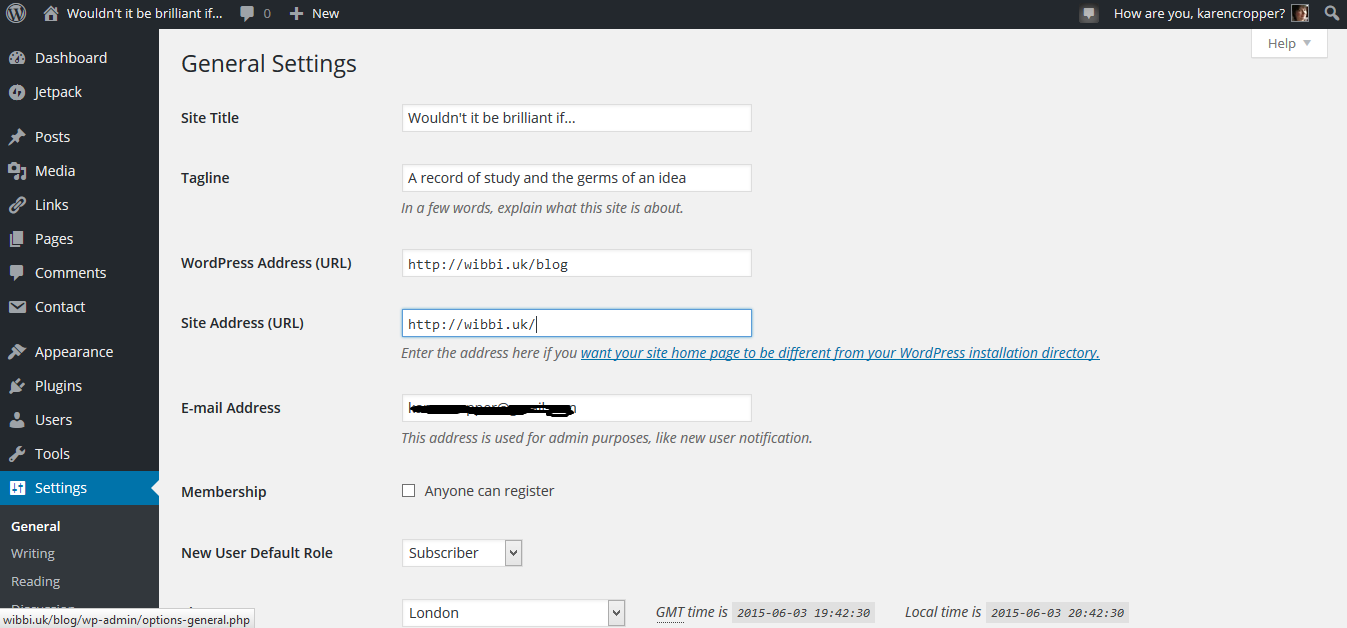
Change Site Address URL in Settings, General on dashboard and save
Click Save Changes. (Do not worry about the error message and do not try to see your blog at this point! You will probably get a message about file not found.)
The instructions were to “Copy (NOT MOVE!) the index.php and .htaccess files from the WordPress” (blog in our example) directory into the root directory of your site (in my case this was public_html).
The .htaccess file is invisible, so you may have to set your FTP client to show hidden files. I couldn’t find a way to do this or to copy from the location in the /blog/ folder to the /public_html/ folder in the file manager on the Control Panel.
So what I did instead was, I created a dummy .htaccess file in notepad++ by opening a new file typing in a line of text and saving as .htaccess. That is without anything before the dot.
Then I transferred that via FireFTP to the public_html folder, but still couldn’t see it. Then in file manager from the Control Panel, I clicked on edit for the .htaccess file in the /blog/ folder, copied the contents and closed it without saving. Then went up a level and clicked on edit of the dummy .htaccess file, then pasted in the contents over the dummy text that was there. This time saved it.
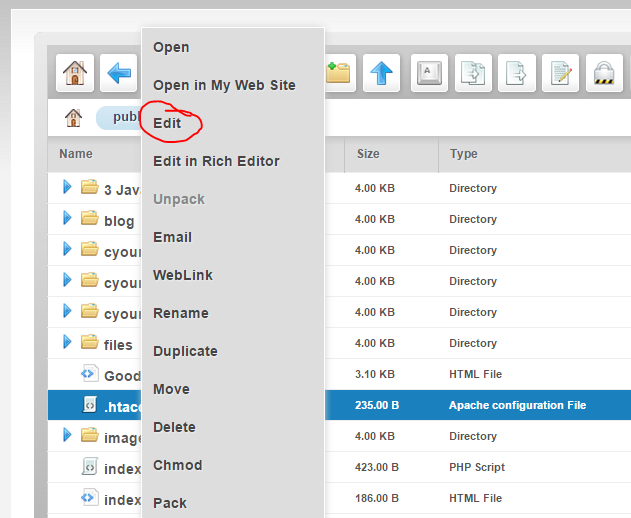
Click on file in File Manager and select Edit from list
“Edit your root directory’s index.php” (in my case the index.php that had been copied from the /blog/ folder to the /public_html/ folder).
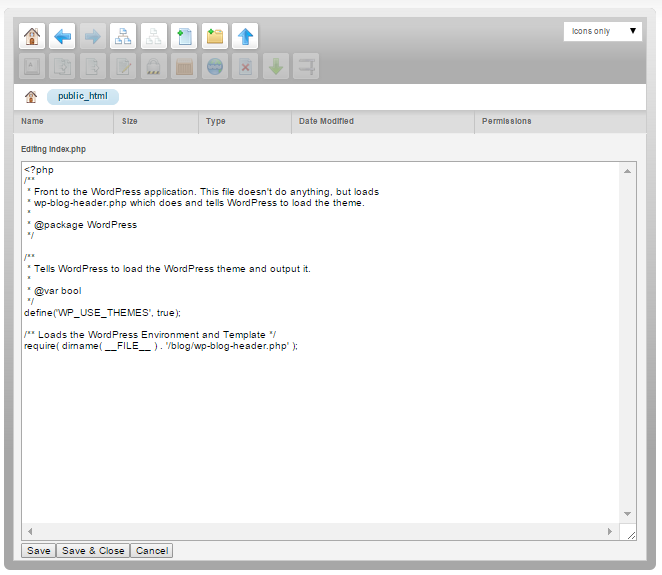
Edit index.php then save
To do that open your root directory’s (/public_html/) index.php file in a text editor (in my case opened direct in File Manager.)
Change the line that says:
require( dirname( __FILE__ ) . '/wp-blog-header.php' );
to the following, using your directory name for the WordPress core files (in my case /blog/ where the wordpress files are):
require( dirname( __FILE__ ) . '/blog/wp-blog-header.php' );
Save the index.php file.
Login to your site (if you aren’t still already). The URL should still be http://wibbi.uk/blog/wp-admin/ or in generic terms http://domain.com/folder/wp-admin
If you have set up Permalinks (I had and I think even if you don’t realise that you have, you should do this), go to the Permalinks panel and update your Permalink structure. WordPress will automatically update your .htaccess file if it has the appropriate file permissions. What this means is even if you are not changing anything the option of the Permalinks, you need to go there and click save. And by the way that is an option in Settings on the dashboard.
The instructions say “If WordPress can’t write to your .htaccess file, it will display the new rewrite rules to you, which you should manually copy into your .htaccess file (in the same directory as the main index.php file.)” This didn’t happen for me and I am not quite sure what it means but I assume it tells you what should be in the .htaccess file in a box that you can copy from.
Finally, I tested whether it had all worked by clicking around various links and sure enough the folder part of the URL is no longer showing.
Before I did all of this though I did lots of other things in order to change over from using the temporary URL with a different domain name – I will write about that in a separate post.







Recent Comments