Creative Coding: How many things can you do with one idea?
I decided, rather than rush on to the week two lectures early, I would have a more creative play with the exercises that I have already ticked off, to embed the learning (learning from the Learning How to Learn course).
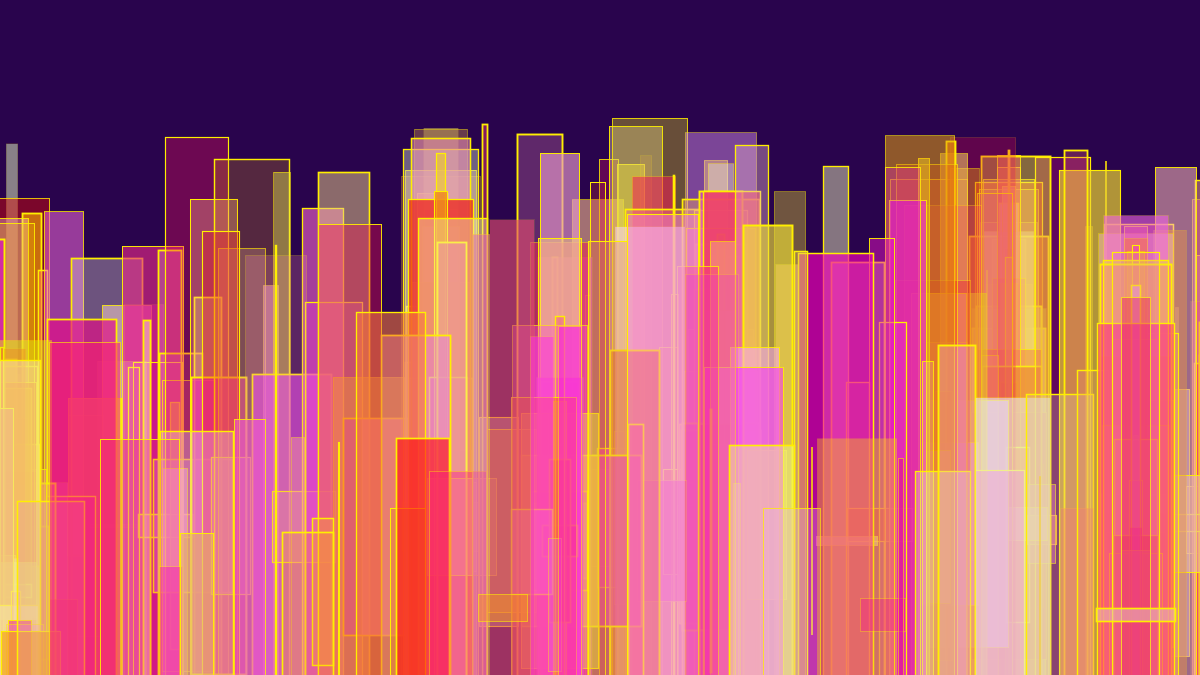
So I went back to the first example (w1_01), which simply had grey scale rectangles and tried to see what variations I could do. Not infinite permutations, but taking a specific idea and really working on it to see what images I could produce. I had the idea of making some kind of hinted representation of sky scrapers lit up against a night sky by making the variation of the width of the rectangles quite narrow, but the height a very large range (and putting in minimums).
I also wanted to have colour, but restrict the variation within a range of hues, so I defined variables for Red, Green and Blue and Transparency so that I could play with the range of the random numbers.
All of the images that I saved have the following colour range:
    int rColor, gColor, bColor, xTrans;

    rColor = (int) random(225,255);
    gColor = (int) random(255);
    bColor = (int) random(255);
    xTrans = (int) random(50,175);

    fill(rColor, gColor, bColor, xTrans);
I picked a yellow (#FFEF00) as a fixed colour for the outline with a slight variation of thickness defined by random strokeWeight between 0 and 2.
strokeWeight(random(2));
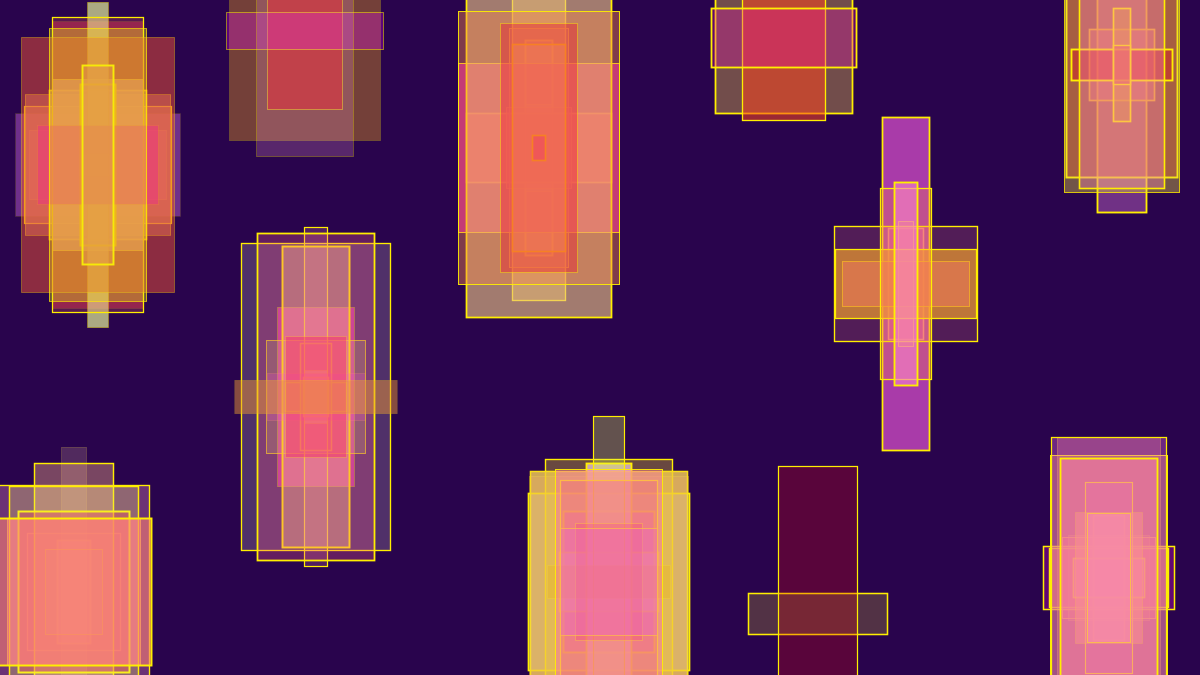
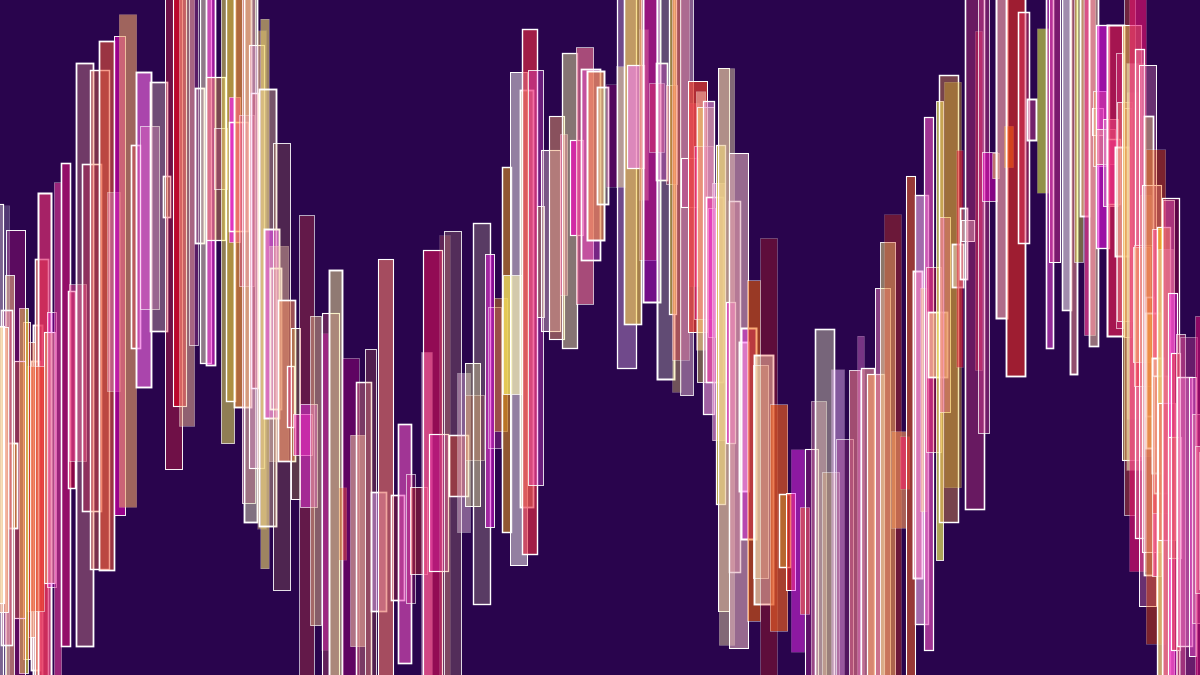
Then I played with varying the numbers in the width and height of the rectangles, and trying out what I could do with different ways of applying marks to the screen. This is where having a touch screen on my laptop comes into it’s own. But I also found that holding the left mouse key down gives the shapes on top of each other which you cannot do by touching the screen.
The images I saved from this exercise are below followed by the code, but the code has the outline (stroke) as white (255), as that was the last thing I tried.
I can see file management is a big issue with this work since you can easily rack up hundreds.
Images
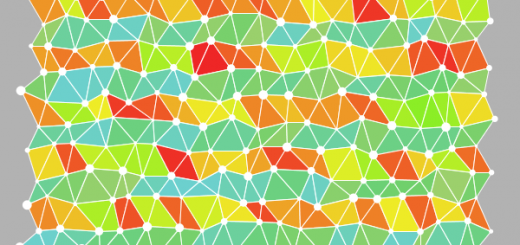
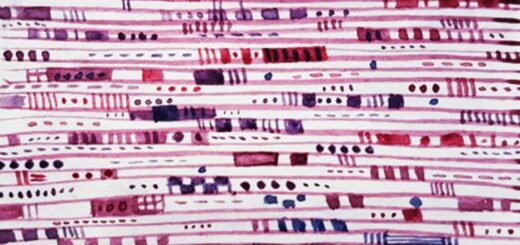
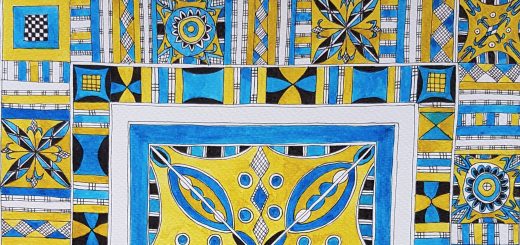
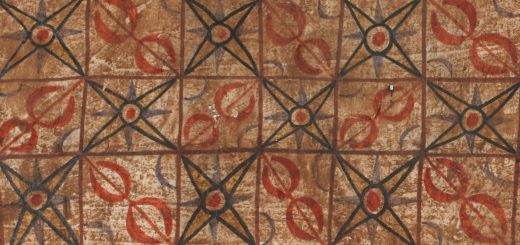
If you click on one of the images below you can see them larger and individually.





Code
/*
 * Creative Coding
 * Week 1, 01 - Draw your name!
 * by Indae Hwang and Jon McCormack
 * Copyright (c) 2014 Monash University
 * Modifications CC-BY Karen Cropper August 2015

 * This program allows you to draw using the mouse.
 * Press 's' to save your drawing as an image to the file "rectangles.png"
 * Press 'r' to erase your drawing and start with a blank screen
 *
 */

// setup function -- called once when the program begins
void setup() {

  // set the display window to size 500 x 500 pixels
  size(1200, 675);

  // set the background colour - if change here also change in the erase section at end
  background(#29044D); // a dark blue - thinking of night sky

  // set the rectangle mode to draw from the centre with a specified radius
  rectMode(RADIUS); // mode can be CORNER, CORNERS, CENTER, or RADIUS
}

// draw function -- called continuously while the program is running
void draw() {

  /* draw a rectangle at your mouse point while you are pressing
   the left mouse button */

  if (mousePressed) {

    // set colors and transparency that will use
    int rColor, gColor, bColor, xTrans;

    rColor = (int) random(225,255);
    gColor = (int) random(255);
    bColor = (int) random(255);
    xTrans = (int) random(50,175);

    // draw a rectangle with a random variation in size
    strokeWeight(random(2)); // thickness of stroke
    stroke(255); // set the stroke colour has been yellow #FFEF00 for most with this code
    fill(rColor, gColor, bColor, xTrans); // set the fill colour
    rect(mouseX, mouseY, random(3,10), random(10,300)); // have tested various ranges here
  }

  // save your drawing when you press keyboard 's'
  if (keyPressed == true && key=='s') {
    saveFrame("rectangles.png");
  }

  // erase your drawing when you press keyboard 'r'
  if (keyPressed == true && key == 'r') {
    background(#29044D);
  }
}

Recent Comments